

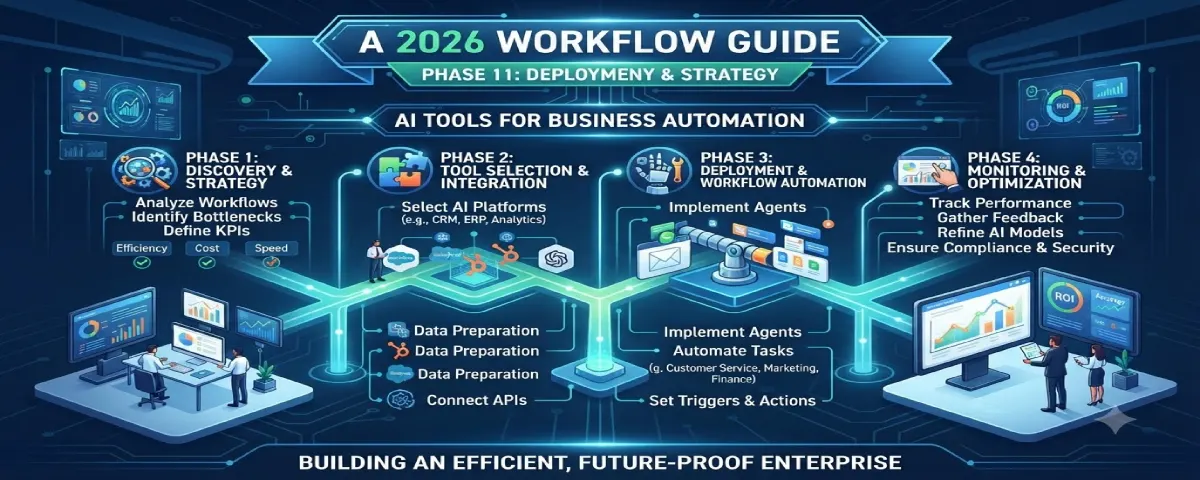
Introduction
AI tools for business automation To run a business, one must perform repetitive tasks each day.
The workforce spends several hours sending emails, working on spreadsheets and customer databases. The workforce also spends lots of time dealing with invoicing, scheduling meetings and handling queries. Such tasks are important; however, they consume time which could be used to help the business grow.
With the help of automation tools, such tasks can be automated. Businesses can employ ai tools to automate most of the above mentioned tasks. Thus, the workforce will get a chance to help the business grow. With automation, businesses become efficient. Time is saved. Mistakes are minimized. Ai tools, for business automation, make the difference.
AI automation from our AI tools for business pillar.
AI business automation comes into play when it tries to overcome the issue by automating your daily work using minimal or zero coding at all.Here are some examples of tools that use Artificial Intelligence to automate things: Zapier, Make, Microsoft Power Automate, UiPath, n8n ClickUp AI Notion AI and Trello Automation.
In this guide you will learn all about business automation using AI. You will get an idea of what Artificial Intelligence business automation is all about. In addition to that, we will explain how AI business automation actually works. The tools involved in AI business automation are explained in detail in this guide. You will learn all the possible uses of AI in businesses.
- Intelligent Automation (RPA) global market size and forecast (Sources: Gartner, Forrester, Statista).
- Proportion of firms that are currently or going to employ AI automation.
- Average time or cost savings reported by businesses.
What Is Business Automation with AI?
Business automation with AI is the use of artificial intelligence and automation tools to perform repetitive business tasks automatically. Rather than employees performing the same tasks every day manually, AI-based programs perform the tasks quicker and with greater consistency without committing any mistakes.
Automation that is done traditionally always involves a set of predetermined rules. In case a customer fills in a form, the program automatically sends an email. However, AI-based automation does one thing extra – analyzes data, makes sense of it, summarizes the information, takes decisions, and adjusts to new conditions.
For example, an AI automation workflow can:
- Receive a customer inquiry.
- Analyze the message.
- Classify the request.
- Create a support ticket.
- Send an automatic reply.
- Notify the correct team member.
All of this can happen without manual intervention.
How AI Business Automation Works
The majority of AI automation is typically pretty simple:
- Trigger: Something happens, such as a new order, email, or form submission.
- AI Processing: The system analyzes or organizes the information.
- Actions: The workflow performs tasks automatically.
- Completion: Records are updated and notifications are sent.
Best AI Workflow Automation Tools
There is an abundance of AI workflow automation platforms to consider depending on a business’s requirement. While there are solutions that are best suited for no-code workflows, there are some that are great for AI and robotic process automation. Below are some of the more popular examples.
| Tool | Best For |
| Zapier | No-code app automation |
| UiPath | Robotic Process Automation (RPA) |
| Microsoft Power Automate | Microsoft 365 workflows |
| Make | Advanced visual workflows |
| n8n | Open-source automation |
| ClickUp AI | Project management automation |
| Notion AI | Document and knowledge management |
| Trello Automation | Task and project automation |
This guide will help you learn about two of the widely used tools that can help you in the process of business automation: Zapier and UiPath.
Here is an extensive tutorial about using both applications to automate your business process in the upcoming sections.
How To Automate Your Work Using Zapier (A Step-By-Step Guide)
It should be noted that Zapier is an extremely popular application which connects various applications. There are 8,000 apps available including Gmail, Google Sheets, Slack, Shopify, Hubspot and many more. With this tool people can automate tasks that are done over and again by using Zaps.
Step 1: Understand What Zapier Is
- What is Zapier?
- How does it help businesses?
- Why automation matters
- Real-world examples of automation
Step 2: Learn the Basic Terms
Understand these concepts prior to automation.
What Is a Trigger?
- Definition
- Examples
What Is an Action?
- Definition
- Examples
What Is a Zap?
- Trigger + Action
- Workflow explanation
What Are Multi-Step Zaps?
- Multiple actions in one workflow
Step 3: Create a Zapier Account
- Visit the Zapier website.
- Click Sign Up or Try It Free.
- Sign up using Google, Microsoft, or your email.
- Verify your email address.
- Log in to your dashboard.
Step 4: Explore the Zapier Dashboard
Explain each menu.
- Home
- Create
- Zaps
- Tables
- Interfaces
- Chatbots
- History
- Tasks
- Apps
- Settings
Step 5: Connect Your First App
Example:
- Google Sheets
Show:
- Click Create
- Select Zap
- Choose Google Sheets
- Connect your Google account
- Allow permissions
Step 6: Choose a Trigger
Example:
Trigger App:
Google Sheets
Trigger Event:
New Spreadsheet Row
Explain:
UiPath is an RPA system that employs intelligence to assist organizations in automating repetitive processes. It enables organizations to improve their productivity through fast and precise execution of processes. UiPath boosts productivity through error elimination and by allowing individuals to focus on more important things.
Step 7: Test the Trigger
- Click Test Trigger
- Zapier checks your spreadsheet.
- If data is found, continue.
- If not, add sample data and test again.
Step 8: Choose an Action App
Example:
Action App:
Gmail
Action:
Send Email
State the need for a course of action.
Step 9: Configure the Action
Fill in:
- Recipient
- Subject
- Message
- Dynamic fields
- Attachments (optional)
Step 10: Test the Action
Click Test Action.
Check whether:
- The email was sent.
- The information is correct.
- No errors appear.
Step 11: Publish the Zap
Click Publish or Turn On.
Your automation is now live.
Practical Business Automation Examples
Example 1: Facebook Leads → Google Sheets
Trigger:
New Facebook Lead
Action:
Add Row to Google Sheets
Example 2: Google Forms → Gmail
Trigger:
New Form Response
Action:
Send Email
Example 3: Shopify → Slack
Trigger:
New Order
Action:
Slack Notification
Example 4: Calendly → Google Calendar
Trigger:
New Booking
Action:
Create Calendar Event
Example 5: Zoom → Google Calendar
Trigger:
Meeting Created
Action:
Add Calendar Event
Step 12: Create Multi-Step Automation
Example:
Facebook Lead
↓
Google Sheets
↓
Gmail
↓
Slack
↓
HubSpot CRM
Explain how one trigger can perform multiple actions.
Step 13: Monitor Your Automation
Show users how to:
- View Task History
- Check Failed Tasks
- Retry Failed Tasks
- Edit Existing Zaps
Step 14: Use Filters and Paths
Explain:
- Filters
- Conditional Logic
- Delay Steps
- Formatter
- Paths
- AI-powered automation
Step 15: Popular Apps You Can Connect
- Gmail
- Google Sheets
- Google Calendar
- Slack
- Facebook Lead Ads
- Zoom
- HubSpot
- Salesforce
- Mailchimp
- Trello
- Notion
- Airtable
- Shopify
- WooCommerce
Step 16: Zapier Pricing
Explain:
- Free Plan
- Professional Plan
- Team Plan
- Enterprise Plan
Mention which features are available in each plan.
Step 17: Tips for Beginners
- Start with simple workflows.
- Test every Zap before publishing.
- Use descriptive names for Zaps.
- Monitor task history regularly.
- Organize connected apps.
- Add filters to reduce unnecessary actions.
- Review failed tasks and fix errors promptly.
Step 18: Common Zapier Mistakes to Avoid
- Skipping trigger testing.
- Incorrect app permissions.
- Forgetting to publish the Zap.
- Using the wrong trigger event.
- Ignoring task history.
- Not updating expired app connections.
Step 19: Benefits of Using Zapier for Business Automation
- Saves time.
- Reduces manual work.
- Improves productivity.
- Minimizes errors.
- Connects thousands of apps.
- Requires no coding skills.
- Scales with business growth.
- Supports complex workflows.
How to Use UiPath for Business Automation (Step-by-Step)
UiPath is one of those RPA tools which use AI capabilities to automate the routine tasks in organizations. This platform can undertake several kinds of processes such as, among others, data entry, document handling, invoicing, customer support, and workflow approvals. UiPath is employed by firms in their daily processes for various reasons.
Automation of repetitive business tasks is achievable by means of UiPath without engaging in manual efforts. Just follow the easy guidelines below.
Step 1: Create a UiPath Account
Visit the UiPath website.
Sign up for a free Community Edition account.
Log in to the UiPath Automation Cloud dashboard.
Step 2: Open UiPath Studio
Open Studio Web from the dashboard.
Click Create New Project.
Select Agentic Process or Automation Project.
Here you will develop your automated workflow.
Step 3: Choose the Trigger
Every automation starts with a trigger.
Examples include:
- New file uploaded to Google Drive
- New email received
- New form submitted
- Customer places an order
- Excel file updated
Example:
When a new invoice is uploaded to Google Drive, start the workflow automatically.
Step 4: Connect Your Business Apps
Connect UiPath with the applications you use.
Examples:
- Google Drive
- Outlook
- Gmail
- Microsoft Excel
- SharePoint
- SAP
- Salesforce
- Dropbox
Authorize the connection once.
UiPath can now access your business data securely.
Step 5: Add Automation Actions
Choose what should happen after the trigger.
For example:
- Download a file
- Read an invoice
- Copy data
- Send an email
- Update a spreadsheet
- Create a report
- Move files
- Notify employees
Each action becomes one step in the workflow.
Step 6: Use AI to Read Business Documents
UiPath AI can automatically understand documents.
Examples include:
- Invoices
- Purchase orders
- Receipts
- Forms
- Contracts
The AI extracts information such as:
- Invoice number
- Customer name
- Total amount
- Invoice date
- Vendor details
No manual typing is required.
Step 7: Add Business Rules
Tell UiPath what decision to make.
Example:
- If the invoice is less than $500, approve it automatically.
- If the invoice is over $500, send it for manager approval.
- If required information is missing, notify the finance team.
These rules help automate decision-making.
Step 8: Add Human Approval (Optional)
Some tasks require approval before continuing.
UiPath can automatically:
- Send approval requests
- Wait for manager approval
- Continue the workflow after approval
- Reject incomplete requests
This keeps important business processes under control.
Step 9: Test Your Workflow
Before using it in your business:
- Run the automation.
- Check every step.
- Fix any errors.
- Verify the results.
Testing helps ensure the workflow works correctly.
Step 10: Publish the Automation
After testing:
- Publish the workflow.
- Enable automation.
- Let UiPath run automatically in the background.
The workflow now operates without manual work.
Example Business Workflow
A company receives a new invoice.
UiPath automatically:
- Detects the new invoice.
- Downloads the file.
- Reads the invoice using AI.
- Extracts invoice details.
- Checks company approval rules.
- Approves small invoices automatically.
- Sends large invoices to a manager.
- Moves approved invoices to the Approved folder.
- Moves rejected invoices to the Rejected folder.
- Records every action for future tracking.
The entire process runs automatically.
Tips for Beginners
- Start with a simple workflow.
- Automate one repetitive task first.
- Test before publishing.
- Connect only trusted business applications.
- Use AI for document processing.
- Monitor automation performance regularly.
- Improve workflows as your business grows.
AI for Repetitive Task Automation
Begin with defining repetitive tasks and the reasons why they are automated within businesses.
What Are Repetitive Business Tasks?
Examples include:
- Copying customer data
- Sending emails
- Creating invoices
- Updating spreadsheets
- Scheduling meetings
- Inventory updates
- Employee onboarding
- File organization
Tasks AI Can Automate
| Business Task | AI Automation Example |
| Data Entry | Automatically transfer customer information between apps |
| Email Responses | Send welcome emails and follow-ups |
| Invoice Processing | Extract invoice details automatically |
| Appointment Scheduling | Book meetings without manual work |
| Social Media Posting | Schedule content across multiple platforms |
| Customer Support | Answer common questions using AI chatbots |
| Report Generation | Create weekly sales reports automatically |
| File Management | Organize and rename files automatically |
Measure impact via AI tools for business analytics.
Why Businesses Automate Repetitive Work
- Saves employee time
- Improves accuracy
- Reduces manual work
- Increases productivity
- Faster customer response
- Better workflow consistency
The benefits of AI business automation are not about using new tools. They are about achieving results for the business.
Time Savings
AI cuts down on the time spent on tasks. It takes over work like data entry, scheduling and report generation. This means time spent on things that don’t add much value. Employees don’t have to spend hours on operations. Instead they can use their time for tasks.
Lower Operating Costs
When machines do the work the business spends less on labor. There’s no need to pay overtime or hire staff for routine jobs. AI systems run 24/7 without breaks. This reduces the need for large teams to handle tasks. Lower labor costs mean operating costs.
Better Accuracy
Humans make mistakes especially when doing the thing over and over. AI follows rules every time. It doesn’t get tired or distracted. In areas like invoicing, inventory tracking or data processing AI ensures everything is correct. Fewer errors mean problems down the line. Fewer errors mean delays. Fewer errors mean trust.
Increased productivity Due to the fact that the process is performed by the AI, the workers will be able to use their time on performing tasks that need creative thinking and decision making.. This shift improves productivity. The business gets more out of the number of people.
Faster Customer Service
AI-powered. Automated responses answer customer questions instantly. Customers don’t have to wait hours or days for replies. Automated support systems handle issues quickly. This means faster resolution times and better customer experiences. Faster customer service means customers.
Business Scalability
As a business grows the workload grows too. With AI the business can scale without hiring people. AI systems can manage volumes of data orders or inquiries without slowing down. The business can grow faster. Handle more work, with the same team. Scalability becomes easier not harder.
Summary Table
| Benefit | Business Impact |
| Saves Time | Less manual work |
| Reduces Costs | Lower operational expenses |
| Improves Accuracy | Fewer errors |
| Better Customer Experience | Faster service |
| Higher Productivity | Employees focus on important tasks |
| Easier Growth | Handles larger workloads |
AI Automation Use Cases by Department
This section should explain how different departments use AI.
Marketing Department
Examples:
- Email campaigns
- Social media scheduling
- Lead nurturing
- Content planning
Automate campaigns with AI tools for marketing.
Sales Department
Examples:
- Lead scoring
- CRM updates
- Sales follow-ups
- Proposal generation
Customer Support
Examples:
- AI chatbots
- Ticket routing
- FAQ automation
- Customer feedback analysis
Human Resources (HR)
Examples:
- Resume screening
- Employee onboarding
- Leave approvals
- Training reminders
Finance
Examples:
- Invoice processing
- Expense tracking
- Payment reminders
- Financial reporting
Operations
Examples:
- Inventory updates
- Order processing
- Workflow approvals
- Vendor management
IT Department
Examples:
- Password reset automation
- System monitoring
- Backup scheduling
- User account management
Department Use Case Table
| Department | AI Automation Examples |
| Marketing | Email campaigns, social media scheduling |
| Sales | CRM updates, lead management |
| Customer Support | Chatbots, ticket routing |
| HR | Recruitment, onboarding |
| Finance | Invoice processing, reporting |
| Operations | Inventory and order management |
| IT | Monitoring, user management |
Common Mistakes to Avoid When Implementing AI Business Automation
Include points such as:
- Automating every process at once
- Choosing tools without clear goals
- Ignoring employee training
- Not monitoring automated workflows
- Failing to review automation performance
- Overlooking data security
- Not testing workflows before deployment
Frequently Asked Questions
What are business automation AI tools?
These are AI-powered tools which are used in automating activities such as data entry, sending emails, invoicing, scheduling, and workflow.
What is the best AI automation tool for beginners?
One of the best services for beginners’ use is Zapier because it provides a friendly interface without using any programming language.
Is UiPath better than Zapier?
UiPath is best for RPA purposes, whereas Zapier is excellent when you want to connect various cloud applications.
Can small businesses leverage AI automation?
Yes. Small businesses can automate their regular tasks, including email notifications, customer management, invoicing, and scheduling, using inexpensive AI automation tools.
Conclusion
AI business automation allows organizations to become more productive, efficient, and save time through automation of processes that are time-consuming for employees. Platforms such as Zapier and UiPath facilitate creation of automation flows without programming experience.
It is recommended to start with a small automation and build flows with further development of business. Through AI automation organizations can achieve higher efficiency, accuracy, and concentrate on business development and customer service.